
Nobody can raise doubt about the demand and power of Google Play Store accounts in the mobile apps and software domain.
The domain gets revived by the Play Store statistical updates with their 3.48 million apps on Play Store and 3739 apps getting released on a daily basis.
Now, let’s discuss the topic that you are hunting for: “How to upload an app to Google Play Store”. Our Approzo Technologies Mobile app developer will help you with all possible guidance needed. We are certain that we have narrowed down your search funnel by covering end-to-end all about the process of Google Play uploads. So let's dive into it.
Areas Covered Before Publishing your App to Google Play Store Console
Before moving forward with submitting your app to the store, you need to make sure the following criterias are satisfied.
1. Matriculate in Google Play App Signing
In order to upload your app, first you need to sign in to Google Play. Also, if you build and need to submit an Android App bundle, you have to enroll in the Play App signing.
Recommended Compressed Download Size Limit shouldn't be exceeded
Only 150 MB of compressed app download is supported by Google Play and even less. In case if it crosses the limit of 150 MB, something or other issue gets generated.
Steps To Follow For Publishing App to Google Play Store
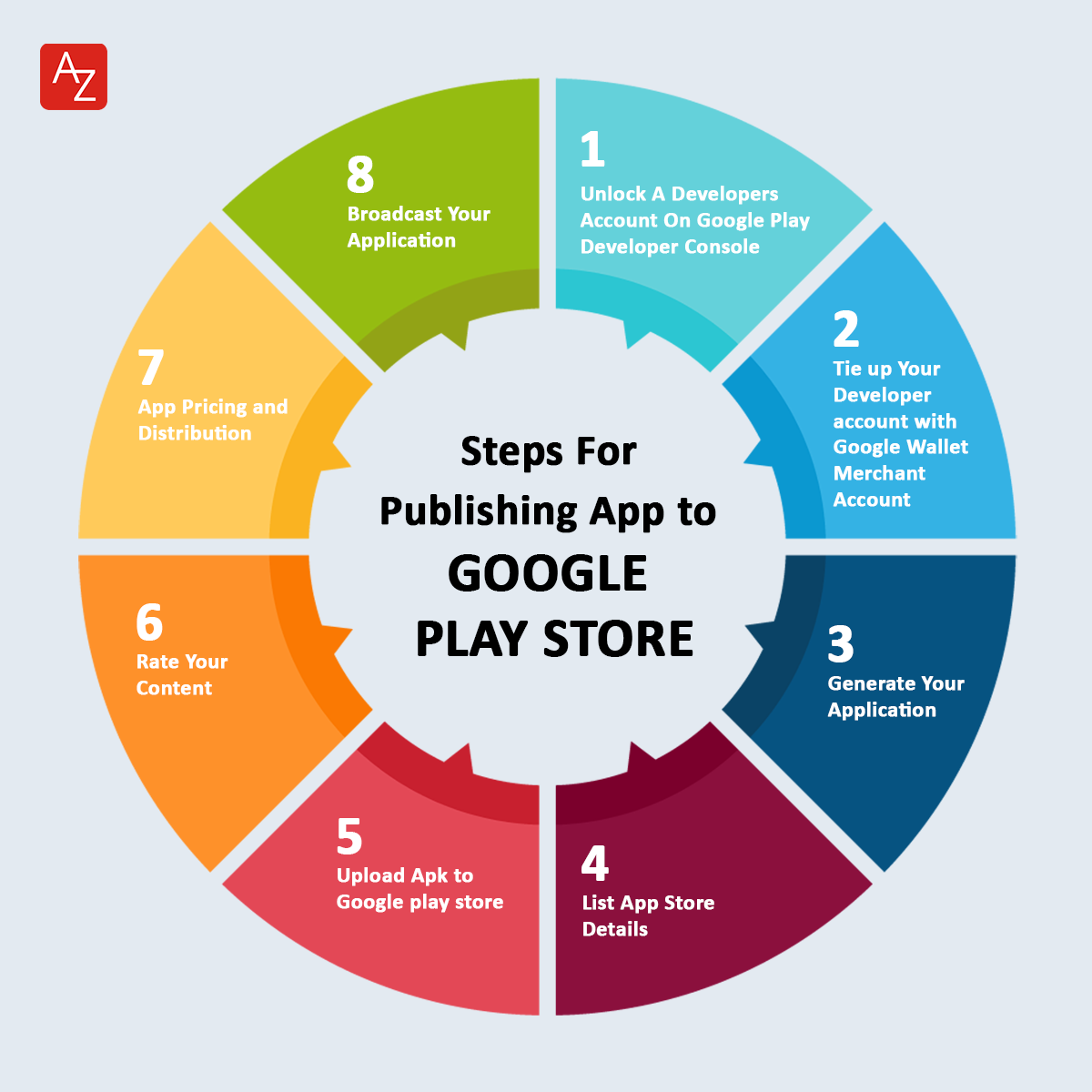
Step 1: Unlock A Developers Account On Google Play Developer Console
In case you want to upload an android play store app, this App developer dashboard will play a crucial role in it. Similar to a backend command post, the Google play console acts as a section from where developers submit Play store apps for Android. Developers can unlock an account by paying a lump-sum amount of $25 to get fully filled with functionality and control features. This lump-sum amount will provide the benefits of submitting your apps to the Google Play Store free of cost. For account creation, credentials need to be filled in like name, country, etc. After submission of your account, the process of approval will take up to 48 hours.
Step 2: Tie-up Your Developer account with Google Wallet Merchant Account
In case your app needs to be uploaded to the Play Store support in-app purchases, by that time you need to have a merchant account. In order to create a merchant account, you need to sign in to your Google Play Console account to select “Reports” and the next “Financial Reports” option. Once entered you can click the “Set up a merchant account now” option to fill your details. This merchant account will involuntarily get connected to your Google Play console account and serve allowance for you to manage and examine app sales.
Step 3: Generate Your Application
Leading to another step, immediately after logging into your developer or publisher account, a few steps you need to follow to publish app to google play:
- Under Menu, click the “All Applications” tab.
- Select the “Create Application” option.
- Under the drop-down menu, select the app’s default language.
- Enter your application’s title(which can be modified later)
- Then click on “Create”.
Step 4: List App Store Details
At this point of Google Play uploads, all details and information that you have already gathered before, need to fill up and explain your app details in a brief description box. Make use of appropriate keywords in your app description in order to increase the chances of your app showing up in searches.
Step 5: Upload Apk to Google play store
At this point, files such as App bundle or APK are required to be used and released of signed apps by uploading them into your app. First steps that need to be followed are navigation to the “Release management” and then “App Release'' tab in the menu. Next, you can select any one release type from four options like internal test, close test, an open test and production release. Finally, after your decision regarding your preferred type of release, select “Create Release”.
Meanwhile, you will get redirected to the New Release to the production page. In this page you have to make another decision which includes opting for Google play apps store signing on the app or not. By choosing the latter, just select the “OPT-OUT” option.
Next, please choose “Browse files” and start looking into the process of uploading apk to google apps store during naming and here you have to describe your release also through on-screen instructions. Please click on “Review” for information confirmation. After everything is sorted, press “Save”.
Step 6: Rate Your Content
Proceeding forward, here comes the next step of rating your app by publishing Android apps on the Play Store. It is imperative to rate the application because it is listed as “Unrated” which might result in removal from the store altogether.
In case of content rating, please navigate to the menu bar as presented to the left side of the screen and choose the same. Click “Continue” to move forward and click “Confirm” after typing your email address.
At the end, fill up your app rating questionnaire and continue to follow by selecting “Save Questionnaire” and then “Calculate Rating” option to view your app rating on Play Store. One last thing for finalizing your app’s content is by clicking “Apply”.
Step 7: App Pricing and Distribution
In this step, make sure you choose the countries where your app will be available. Please be noted here that Google does not support publishing an app for all regions, instead capp can be published in selected countries, not worldwide.
Additionally, Appzoro Technologies will suggest you to assign a price to your application. In further process if you wish to have your app free of charge, then in that case your decision needs to be permanent as Google will not give you permission to convert free apps into paid ones. Although app price can be altered.
To work on this, visit the “Pricing and Distribution” tab in the menu and then select Free or Paid as per your preference. Next, pick your preferred countries where you want your app to be available.
Apart from this, you will have the right to choose options for allowing or not allowing ads in your app.
Step 8: Broadcast Your Application
You can start uploading your app to Google Play Store if you are quite confident that all information that you have provided is correct. Now you can plunge into the last guide step on uploading the android app to the Play Store. Go back to the “App Releases” tab and then select “Manage Production” followed by “Edit Release”. Now you can click on “Review” and select the “Start rollout to production” option. At the end of the process, select the “Confirm” option. This declares that you have successfully uploaded the app to the Google Play Store apk account for free. Now, wait for the app to get approved which generally takes about two hours for your app to get reviewed. But it might take hours and even days for the same due to app store google Play’s updated privacy policy. This immensely encourages other companies to take up a challenge in creating even more flawless apps that get selected instantly.
The procedure of Featuring Your Application on the Google Play Store
It is your duty to ensure the app secure recognition by not only millennial downloads. Succeeding with appropriate steps execution related to publishing free or paid apps on Google Play Store, at this point it’s high time to secure it featured on Play Store.
Reflection of some beyond doubt rules like user interaction and services related to visual design, latest technologies experience, centralization, etc which assist your app for getting featured.
Gaining benefits for your app to a limit by getting featured on Google Play Store, expands the observation of users by innumerable times on your app.
Steps to Follow After Play Store App Submission
Wondering what you're gonna do after App publishing on Google Play Store? Let’s find out how Appzoro Technologies have got you covered with all kinds of solutions. Here’s how you can proceed with several practices on ensuring your application enjoys worldwide exposure on the Google apps store.
Boost App on Social Media
The best part of social media is that it can act as a great forum to high rise the demand of your application. 42% of the global population depends on social media like Facebook, Linkedin, Pinterest, Instagram and other useful platforms which generally indicates and drives huge traffic and more downloads if you start promoting on these promising platforms.
Launch Press Release
Another alternative way for promoting your brand is through Press-release. This will help your brand to fetch the limelight including multiple publications to cover app release for your app to reach a wider user base by developing an original route.
The Press-release strategy has been proved to be the most incredible app marketing strategy in recent times. It not only covers words, and attributes but also insights of the mobile app developers and application by setting an example of all time idols to show users that their expectation is good.
Maintain and Update Your App
You won’t be able to relax by just publishing your application on the app store. With high efficiency, try to maintain your app with detailed attention to users' bugs facing issues, and introducing persistent updates. Ensure fixing anything that needs to be fixed in the app and keep the app updated with the latest app stack.
Exercise ASO
The most common exercise among all other excellent Android app development companies is App Store Optimization. Globally termed as ASO, whose point of convergence is based on target activity aspects that can create more attention and range of vision of your app on the app store. Generally, the intention of these exercises leads to boosting higher growth in the conversion rate of impressions into downloads on application.
What’s the ideal duration to Publish an App on Google Play Apps Store?
No fixed set time period exists in publishing apps on Google apps store. The app submitting procedure through Play Store Console is quite simple and incisive including the app period by completing review and selection varies between hours and days.
How much does it charge to Put an App on the Play Store?
Only a one-time payment of $25 is required during your first application publishing. Later, it is free of cost for all other android apps that you publish on google app store.
Also Read: How to Choose the Right Mobile App Database: A Detailed Guide
Leave a Comment